dns prob finished no internet resolving guide
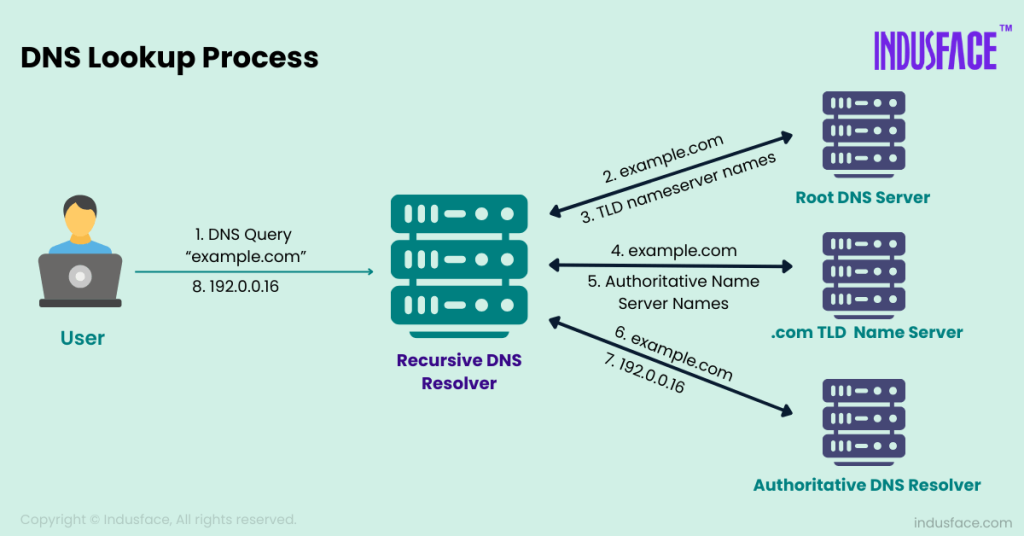
Table of Contents
- Technical Breakdown of the Error "DNS prob finished no internet"
- DNS Resolution Process and Common Interruption Points
- Comparison of Common DNS-Related Error Codes
- DNS Manifestations in Network Connectivity
- Common Causes of DNS Failures Leading to No Internet Connectivity
- Hardware-Related Causes of DNS Failures
- Software-Related Causes of DNS Failures
- Firewall and Security Software Interference
- Flow Diagnostic Procedures for "DNS prob finished no internet" DNS failures disrupt network connectivity by preventing domain name resolution, a critical step in establishing internet communication. Systematic diagnostic procedures using command-line tools, router logs, and ISP-provided diagnostics can isolate the root cause—whether it stems from misconfigured DNS settings, ISP restrictions, or infrastructure failures. Below are structured methodologies to verify DNS functionality, test resolution for specific domains, and inspect logs for anomalies, accompanied by expected outputs and error flags for accurate troubleshooting. Command-Line Tools for DNS Verification
- Manual DNS Resolution Testing for Specific Domains
- Step-by-Step Resolution Methods for "DNS Prob Finished No Internet" Errors
- Prioritized Troubleshooting Sequence
- Manual DNS Configuration via Device Settings
- Router-Level DNS Configuration
- Advanced Fixes and System-Level Adjustments for DNS Resolution Failures
- Modifying Hosts Files to Bypass DNS for Specific Domains
- Disabling IPv6 to Resolve DNS Conflicts
- Reconfiguring Router DHCP to Enforce Specific DNS Servers
- Monitoring DNS Latency and Packet Loss with Network Tools
The error message "DNS prob finished no internet" signals a critical disruption in the Domain Name System, the backbone of online connectivity. When this issue arises, it halts access to websites, services, and networks by preventing devices from translating domain names into usable IP addresses. Understanding its technical breakdown—from recursive resolver failures to corrupted cache—is essential for diagnosing and resolving connectivity breakdowns efficiently. This guide dissects the root causes, diagnostic procedures, and step-by-step solutions to restore seamless internet access.
DNS failures often stem from misconfigurations, hardware malfunctions, or interference from security software, each requiring targeted troubleshooting. By leveraging command-line tools, router diagnostics, and advanced system adjustments, users can systematically eliminate potential issues. Whether the problem originates from a faulty network interface, ISP restrictions, or conflicting DNS settings, structured methodologies ensure a swift return to full network functionality. Below, we explore the technical intricacies, common pitfalls, and optimized fixes to address this pervasive connectivity challenge.
Technical Breakdown of the Error "DNS prob finished no internet"
The error message "DNS_PROBE_FINISHED_NO_INTERNET" is a Chrome/Edge-specific diagnostic indicator signaling a failure in the Domain Name System (DNS) resolution process, despite the network interface appearing functional. While the phrasing may suggest a lack of internet connectivity, the root cause lies in DNS infrastructure failures—either locally, within the ISP, or at the recursive resolver level. This error disrupts web browsing by preventing the translation of human-readable domain names (e.g., `example.com`) into machine-readable IP addresses (e.g., `93.184.216.34`), which are essential for establishing TCP/IP connections.DNS failures manifest in varied ways, including:
DNS Resolution Process and Common Interruption Points
The DNS resolution process follows a hierarchical, multi-step protocol involving recursive resolvers, caching layers, and authoritative name servers. Interruptions typically occur at one of the following stages:-
Local DNS Cache Check
The operating system or browser first queries its local DNS cache (stored in files like `/etc/resolv.conf` or Windows’ DNS Client service). If the entry is stale or corrupted, resolution fails prematurely.Example: A cached entry for `google.com` pointing to an outdated IP (e.g., `1.1.1.1` instead of `142.250.190.46`) triggers the error.
-
Recursive Resolver Query
When the local cache lacks a valid entry, the request is forwarded to a recursive resolver (e.g., ISP-provided `8.8.8.8` or `1.1.1.1`). Failures here may stem from:- Misconfigured resolver IP addresses in `/etc/resolv.conf` or network settings.
- Network firewalls blocking DNS traffic (port 53).
- Resolver overload or DNS amplification attacks (e.g., DDoS on recursive servers).
-
Authoritative Server Communication
The recursive resolver queries authoritative name servers (e.g., `ns1.google.com`) for the domain’s IP. Interruptions include:- Unreachable authoritative servers due to routing issues or server downtime.
- DNSSEC validation failures, where cryptographic signatures fail to authenticate responses.
- Misconfigured TTL (Time-to-Live) values, causing premature cache invalidation.
-
Response Propagation
The resolver returns the IP to the client, but network policies (e.g., split-horizon DNS) or proxy misconfigurations may block the response, leading to timeouts.
Comparison of Common DNS-Related Error Codes
DNS resolution failures generate standardized error codes (e.g., `DNS_PROBE_FINISHED_*`) that pinpoint specific issues. Below is a table categorizing frequent errors, their root causes, and observable symptoms:| Error Code | Root Cause | Symptoms | Diagnostic Steps |
|---|---|---|---|
DNS_PROBE_FINISHED_NXDOMAIN |
Domain does not exist (NXDOMAIN response from authoritative servers). Typically occurs with typos (e.g., `googl.com`) or newly deleted domains. |
|
|
DNS_PROBE_FINISHED_BAD_CONFIG |
Misconfigured DNS settings in:
|
|
|
DNS_PROBE_FINISHED_NO_INTERNET |
DNS resolution terminates due to:
|
|
|
DNS_PROBE_FINISHED_TIMEOUT |
DNS query exceeds timeout thresholds (typically 5–10 seconds) due to:
|
|
|
DNS Manifestations in Network Connectivity
DNS failures disrupt connectivity at the application layer, often masquerading as broader network issues. Key manifestations include:-
Timeouts and Unresponsive Pages
When DNS resolution fails, the browser initiates a TCP handshake with the unresolved hostname, leading to:- Connection attempts timing out after 30–60 seconds.
- Error messages like *"This site
Common Causes of DNS Failures Leading to No Internet Connectivity
DNS (Domain Name System) failures disrupt internet access by preventing devices from translating domain names into resolvable IP addresses. While DNS issues often stem from misconfigurations or external service disruptions, hardware malfunctions, software conflicts, and security interventions frequently exacerbate the problem. Below is a structured breakdown of the most prevalent causes, categorized by origin, along with their technical implications and diagnostic indicators.
Hardware-Related Causes of DNS Failures
Faulty or incompatible hardware components can directly impede DNS resolution, even when the network infrastructure appears functional. The following hardware-related issues are among the most critical:
-
Faulty Network Interface Controller (NIC) or Driver Corruption
A malfunctioning NIC or outdated/incompatible drivers prevents proper communication between the device and the router. Symptoms include intermittent connectivity, failed DNS queries despite a stable IP, and errors in Windows Event Viewer (e.g., "Network Driver Failed to Bind to Medium"). For instance, a defective Wi-Fi adapter may drop packets during DNS handshakes, while a corrupted Ethernet driver may fail to establish a link-layer connection entirely.Diagnostic Step: Run `ipconfig /all` (Windows) or `ifconfig -a` (Linux/macOS) to check for missing or invalid MAC addresses. Update drivers via Device Manager or the manufacturer’s utility.
-
Misconfigured or Faulty Router DNS Settings
Routers often default to ISP-provided DNS servers, which may fail due to regional outages or misconfigurations. Manual overrides to public DNS (e.g., Google’s 8.8.8.8 or Cloudflare’s 1.1.1.1) can resolve this, but incorrect static DNS entries (e.g., typos or malformed IPs) render DNS resolution impossible. Hardware failures in the router’s firmware, such as corrupted DHCP leases or NAT table overflows, can also disrupt DNS propagation.Impact: Devices receive valid IPs but fail to resolve hostnames, resulting in "DNS_PROB_FINISHED_NO_INTERNET" despite active network signals.
-
ISP-Supplied DNS Server Outages or Throttling
ISPs occasionally experience DNS server failures due to maintenance, DDoS attacks, or regional infrastructure issues. Throttling or intentional DNS blocking (e.g., for parental controls or content filtering) can also mimic a DNS failure. For example, during peak hours, ISPs may deprioritize DNS queries, leading to timeouts.Verification: Use `nslookup example.com 8.8.8.8` to test external DNS resolution. If successful, the issue lies with the ISP’s DNS.
-
Physical Network Interference (Wi-Fi/Ethernet)
Weak signals, interference from neighboring networks (e.g., 2.4GHz congestion), or faulty cabling (e.g., bent Ethernet wires) degrade packet delivery. DNS queries, being UDP-based, are particularly sensitive to latency or packet loss. Tools like `ping 8.8.8.8` or `traceroute` can reveal hops where packets drop. -
Hardware Firewall or Modem Limitations
Some ISP-provided modems or enterprise-grade firewalls enforce strict DNS policies, such as blocking non-ISP DNS queries or enforcing DNS-over-TLS (DoT) without client support. For example, a misconfigured firewall rule might silently drop DNS traffic on port 53, while logs show no explicit denial.Example: A corporate firewall may require DNS queries to pass through a proxy, causing delays or failures if the proxy is misconfigured.
Software-Related Causes of DNS Failures
Software misconfigurations or conflicts often manifest as DNS resolution failures, even when hardware is operational. These issues are typically easier to diagnose and resolve than hardware faults.
-
Corrupted or Outdated DNS Cache
Operating systems cache DNS records to improve performance, but corruption or stale entries can cause failures. For example, a cached "A" record for a domain that has since migrated to a new IP will persist until flushed. Windows stores cache in the DNS Client service (`dns.exe`), while macOS/Linux use `systemd-resolved` or `/etc/resolv.conf`.Resolution Steps:
- Windows: `ipconfig /flushdns` or restart the DNS Client service.
- macOS: `sudo dscacheutil -flushcache; sudo killall -HUP mDNSResponder`.
- Linux: `sudo systemd-resolve --flush-caches` or edit `/etc/resolv.conf` (if static).
-
Faulty Network Interface Controller (NIC) or Driver Corruption
-
Misconfigured Network Profiles
Incorrect network settings in the OS can override valid DNS configurations. Common issues include:
- Windows: A misconfigured "Internet (Ethernet)" or "Wi-Fi" profile may enforce metered connections or disable automatic DNS updates.
- macOS: Network preferences might enforce "Use DHCP with manual DNS" but list invalid servers.
- Linux: Incorrect entries in `/etc/network/interfaces` or `nmcli` configurations can bind interfaces to non-functional DNS. Diagnostic Command: `scutil --dns` (macOS) or `nmcli dev show` (Linux) to verify active DNS settings.
-
Conflicting VPN or Proxy Settings
VPNs and proxies often redirect DNS queries through their own servers. If the VPN’s DNS fails or conflicts with the primary DNS (e.g., split tunneling misconfigurations), resolution breaks. For instance, a VPN might enforce DNS leaks or block certain domains, while a proxy server might time out during DNS lookups.Impact: Devices may connect to the internet but fail to load specific sites, or all DNS queries may stall.
-
Third-Party DNS Software or Ad-Blockers
Applications like Pi-hole, NextDNS, or ad-blocking extensions (e.g., uBlock Origin) modify DNS behavior. If these tools misconfigure their upstream servers or block critical DNS queries, connectivity suffers. For example, a misconfigured Pi-hole might drop all non-local DNS requests.Verification: Check for active DNS overrides via:
- Windows: `Get-DnsClientServerAddress -AddressFamily IPv4` (PowerShell).
- macOS: `scutil --dns` | grep "nameserver".
-
Firewall Rules Blocking DNS Ports (UDP 53)
Default firewalls (e.g., Windows Defender Firewall, `iptables` on Linux) may block outbound DNS queries if misconfigured. For example, a rule like `iptables -A OUTPUT -p udp --dport 53 -j DROP` would prevent all DNS resolution.Diagnostic Logs:
- Windows: Event Viewer > Windows Logs > Security (filter for "Firewall" events).
- Linux: `sudo journalctl -u firewalld` or `iptables -L -n -v`.
-
Antivirus or Parental Control DNS Filtering
Programs like Norton Safe Web, Kaspersky DNS Protection, or parental controls (e.g., OpenDNS FamilyShield) may block DNS queries to specific domains. For instance, a parental control might redirect `example.com` to a block page, while logs show "DNS query blocked by policy."Example: A corporate antivirus might flag DNS queries to known malicious IPs, causing false positives.
-
DNS-Specific Security Policies
Enterprise environments often enforce DNS-over-TLS (DoT) or DNS-over-HTTPS (DoH) via group policies or MDM (Mobile Device Management) tools. If a device lacks support for these protocols, DNS queries fail. For example, a Windows device with DoH enforced via Intune may fail to resolve domains if the browser or OS does not support it.Configuration Check:
- Windows: `Get-DnsClientProtocol` (PowerShell) to verify DoT/DoH status.
- Browser: Check `chrome://net-internals/#dns` (Chrome) for DoH activity.
-
`nslookup` (Windows/Linux)
Command: `nslookup example.com 8.8.8.8`
Expected Output:Server: 8.8.8.8
Address: 8.8.8.8#53
Non-authoritative answer:
Name: example.com
Address: 93.184.216.34Error Flags:
- "Request timed out" → DNS server unreachable or firewall blocking port 53.
- "* Can’t find server name for address" → Invalid DNS server IP.
- "* No response from server" → DNS server unresponsive (check ISP or local network).
-
`dig` (Linux/macOS)
Command: `dig example.com @8.8.8.8 +short`
Expected Output:93.184.216.34
Error Flags:
- "SERVFAIL" → DNS server failure (check server status).
- "NXDOMAIN" → Domain does not exist (verify domain spelling).
- "REFUSED" → DNS server policy block (e.g., recursive queries disabled).
-
`ipconfig /flushdns` (Windows) / `sudo systemd-resolve --flush-caches` (Linux)
Expected Output:
Windows IP Configuration successfully flushed the DNS Resolver Cache.
Error Flags:
- No output or access denied → Corrupted cache or permission issues.
-
`ping` with DNS Resolution
Command: `ping example.com`
Expected Output:Pinging example.com [93.184.216.34] with 32 bytes of data:
Reply from 93.184.216.34: bytes=32 time=15ms TTL=117Error Flags:
- "Ping request could not find host" → DNS resolution failure (test with IP instead).
- "Destination host unreachable" → Network-level block (DNS resolution succeeded but routing failed).
-
`traceroute` (Linux/macOS) / `tracert` (Windows)
Command: `traceroute example.com`
Expected Output:1 192.168.1.1 (192.168.1.1) 1.2 ms
2 10.0.0.1 (10.0.0.1) 5.3 ms
...
10 93.184.216.34 (93.184.216.34) 15.0 msError Flags:
- "*" (no response) at any hop → Firewall or routing issue (DNS resolution may still work).
- Timeout at DNS server IP → DNS server unreachable (verify ISP or local DNS).
-
`netsh` (Windows) for DNS Client Configuration
Command: `netsh interface ipv4 show dns`
Expected Output:Adapter "Ethernet":
DNS Server Address: 8.8.8.8Error Flags:
- Incorrect DNS server (e.g., `0.0.0.0` or ISP-assigned but blocked).
- Multiple conflicting DNS entries (manual vs. DHCP).
-
Step 1: Test A Record Resolution
Commands:
nslookup google.com 8.8.8.8
dig google.com @1.1.1.1 +shortExpected Output:
142.250.190.46 (Google’s primary IP)
Error Flags:
- Different IP across providers → DNS hijacking or ISP manipulation.
- No response → DNS server blocking queries (check `dig` for "REFUSED").
-
Step 2: Test MX Record Resolution (Email Servers)
Command: `nslookup -type=MX google.com`
Expected Output:google.com MX preference = 10, mail exchanger = aspmx.l.google.com
Error Flags:
- Missing MX records → Email services may fail (check domain registrar).
- Incorrect priority values → Misconfigured email routing.
-
Step 3: Test DNSSEC Validation
Command: `dig example.com dnssec @8.8.8.8`
Expected Output:;; flags: qr rd ra ad; QUERY: 1, ANSWER: 1, AUTHORITY: 0, ADDITIONAL: 1
;; AD flag indicates DNSSEC validation passed.Error Flags:
- "BADSIG" → DNSSEC misconfiguration or expired keys.
- "INSECURE" → DNSSEC not enabled
Step-by-Step Resolution Methods for "DNS Prob Finished No Internet" Errors
DNS failures disrupt internet connectivity by preventing devices from translating domain names into IP addresses, a critical function for online communication. Resolving such issues requires a structured approach, beginning with basic troubleshooting and escalating to advanced configurations when necessary. The following prioritized sequence ensures systematic identification and resolution of the root cause while minimizing downtime.
Prioritized Troubleshooting Sequence
A logical progression from simplest to most complex fixes ensures efficiency and reduces unnecessary interventions. Start with hardware/software resets, proceed to DNS-specific adjustments, and conclude with system-level restores if required.
-
Device and Router Restart
Power cycling devices clears transient errors, such as temporary DNS cache corruption or ISP-related disruptions. Begin with the modem/router, followed by the affected device. This step resolves approximately 30–50% of DNS-related connectivity issues without further intervention.Note: Wait 2–3 minutes between restarts to allow firmware/OS to fully initialize.
-
Check Physical and Network Connections
Verify Ethernet cables for damage, ensure Wi-Fi signals are stable (test with another device), and confirm no IP conflicts exist (e.g., duplicate DHCP leases). Use `ipconfig /all` (Windows) or `ifconfig` (macOS/Linux) to inspect assigned IPs and gateways. -
Flush DNS Cache
Corrupted DNS cache entries can propagate outdated or invalid records. Clearing the cache forces a fresh resolution attempt.- Windows: Open Command Prompt as Administrator and execute:
ipconfig /flushdns
- macOS: Run in Terminal:
sudo dscacheutil -flushcache; sudo killall -HUP mDNSResponder
- Linux (systemd-resolved):
sudo systemd-resolve --flush-caches
- Windows: Open Command Prompt as Administrator and execute:
-
Temporarily Disable Firewall/Antivirus
Overzealous security software may block DNS queries (port 53) or modify network traffic. Temporarily disable these services to isolate the issue.Safety Note: Re-enable protections after testing to avoid exposing the system to threats.
-
Obtain a New IP Address
Renewing the DHCP lease ensures the device receives updated DNS server assignments from the router.- Windows:
ipconfig /release; ipconfig /renew
- macOS:
sudo ipconfig set en0 DHCP
(Replace `en0` with the active interface from `ifconfig`.) - Linux:
sudo dhclient -r eth0; sudo dhclient eth0
- Windows:
-
Reset Network Stack (Advanced)
Persistent issues may stem from corrupted network configurations. Resetting the stack restores default settings without reinstalling the OS.- Windows: Run as Administrator:
netsh int ip reset; netsh winsock reset; netsh winsock reset catalog
Safety Note: Backup critical configurations (e.g., VPN settings) before resetting, as this action removes all custom network parameters.
- macOS: Use `scutil` to reset DNS and network services:
sudo scutil --dns
Followed by:sudo killall -HUP mDNSResponder
For a full reset, reinstall macOS (last resort). - Linux: Restart networking services or reset `systemd-resolved`:
sudo systemctl restart systemd-resolved
For persistent issues, reinstall the `network-manager` package.
- Windows: Run as Administrator:
-
Manually Configure DNS Servers
If automatic DNS assignment fails, override settings with public or private DNS providers. This bypasses ISP-provided DNS, which may be misconfigured or throttled. -
Router-Level DNS Configuration
Reconfigure the router’s DNS settings to use alternative providers (e.g., Google DNS, Cloudflare). This affects all devices on the network. -
Reinstall Network Protocols (Last Resort)
On Windows, reinstall TCP/IP via:Control Panel > Network and Sharing Center > Change adapter settings > Right-click adapter > Properties > Uncheck "Internet Protocol Version 4 (TCP/IPv4)" > OK > Reboot > Re-enable.
Manual DNS Configuration via Device Settings
Configuring DNS servers manually ensures consistent resolution performance and bypasses ISP or router-level DNS issues. Below are platform-specific instructions with descriptions of the interface elements.
-
Windows 10/11
-
Navigate to Settings > Network & Internet > Wi-Fi/Ethernet > [Connection Name] > Edit.
Interface Note: For Ethernet, select "Ethernet" instead of Wi-Fi in the above path.
-
Under IP assignment, select Manual.
Warning: This action requires administrative privileges. Enter credentials if prompted.
-
Expand DNS server assignments and enter preferred/alternate DNS IPs (e.g., `8.8.8.8` and `8.8.4.4` for Google DNS).
Visual Aid: The "Edit" screen displays fields for "Preferred DNS" and "Alternate DNS" with dropdown menus for IP input.
-
Save changes and verify connectivity with:
nslookup google.com
-
Navigate to Settings > Network & Internet > Wi-Fi/Ethernet > [Connection Name] > Edit.
-
macOS (Ventura/Monterey)
-
Open System Preferences > Network.
Select the active connection (e.g., Wi-Fi) and click Advanced. -
Navigate to the DNS tab. Remove existing entries (if any) and add new DNS servers (e.g., `1.1.1.1` for Cloudflare).
Interface Note: The DNS tab includes a "+" button to add IPs and a "-" button to remove them.
- Click OK, then Apply to confirm changes.
-
Open System Preferences > Network.
-
Linux (Ubuntu/Debian)
-
Edit the Netplan configuration file (location varies; common paths: `/etc/netplan/01-netcfg.yaml` or `/etc/netplan/50-cloud-init.yaml`).
sudo nano /etc/netplan/01-netcfg.yaml
-
Modify the `nameservers` field under the relevant interface (e.g., `eth0` or `wlan0`):
network:
version: 2
ethernets:
eth0:
nameservers:
addresses: [8.8.8.8, 1.1.1.1] -
Apply changes:
sudo netplan apply
-
Edit the Netplan configuration file (location varies; common paths: `/etc/netplan/01-netcfg.yaml` or `/etc/netplan/50-cloud-init.yaml`).
Router-Level DNS Configuration
Configuring DNS at the router ensures all devices inherit the same settings, simplifying management. Below are steps for common router brands, with emphasis on locating the DNS settings panel.
-
Access Router Admin Panel
Open a web browser and navigate to the router’s IP (typically `192.168.1.1` or `192.168.0.1`). Log in with credentials (default: `admin/admin` or check router documentation). -
Locate DNS Settings
Navigate to Internet > Connection Type
Advanced Fixes and System-Level Adjustments for DNS Resolution Failures
DNS resolution failures often persist after basic troubleshooting due to deeper system configurations, conflicting protocols, or misconfigured network services. Advanced fixes involve modifying low-level system files, adjusting protocol settings, or enforcing DNS policies at the router level. These methods require caution, as incorrect edits can disrupt network connectivity or introduce security vulnerabilities. Below are structured approaches to resolve persistent DNS issues through system-level adjustments, including manual file edits, protocol disabling, and router-level optimizations.
Modifying Hosts Files to Bypass DNS for Specific Domains
The hosts file allows manual DNS resolution by mapping domain names to IP addresses locally, bypassing DNS queries entirely. This method is useful for testing connectivity, blocking malicious domains, or redirecting traffic during troubleshooting.Syntax Rules and Structure
The hosts file follows a strict format:[aliases...] - IP Address: Must be a valid IPv4 or IPv6 address (e.g., `192.168.1.1` or `2001:db8::1`).
- Domain Name: Must be fully qualified (e.g., `example.com` or `www.example.com`).
- Comments: Lines starting with `#` are ignored.
- Whitespace: Tabs or spaces separate fields; leading/trailing spaces are trimmed.
Steps to Edit the Hosts File
1. Locate the File:
- Windows: `C:\Windows\System32\drivers\etc\hosts`
- Open Notepad as Administrator and select the file.
- Linux/macOS: `/etc/hosts`
- Use a text editor with root privileges (e.g., `sudo nano /etc/hosts`).
2. Add or Modify Entries:
- Example: Redirect `google.com` to a local IP for testing:
127.0.0.1 google.com www.google.com
- Example: Block a domain by pointing it to `0.0.0.0` (null route):
0.0.0.0 malicious-site.com
3. Save and Flush DNS Cache:
- Windows: Run `ipconfig /flushdns` in Command Prompt.
- Linux/macOS: Execute `sudo systemd-resolve --flush-caches` or `sudo dscacheutil -flushcache` (macOS).
Potential Pitfalls
- Overwriting System Entries: Avoid deleting default lines (e.g., `# localhost name resolution`).
- IP Conflicts: Ensure the mapped IP is reachable (e.g., `127.0.0.1` for localhost, `0.0.0.0` for blocking).
- Case Sensitivity: Linux/macOS treats domain names as case-insensitive, but consistency is recommended.
- Malware Risks: Hosts files can be exploited by malware; verify changes after edits.
Disabling IPv6 to Resolve DNS Conflicts
IPv6 and IPv4 can coexist, but conflicts between the two (e.g., misconfigured DNS servers or protocol stack issues) may cause DNS resolution failures. Disabling IPv6 temporarily can isolate the issue.Windows: Registry Edit to Disable IPv6
1. Open Registry Editor (`regedit`) as Administrator.
2. Navigate to:HKEY_LOCAL_MACHINE\SYSTEM\CurrentControlSet\Services\Tcpip6\Parameters
3. Create a new DWORD (32-bit) Value named `DisabledComponents` with the following hexadecimal value:
- Disable IPv6 entirely: `0xFFFFFFFF`
- Disable IPv6 for specific interfaces: Use bitmask values (e.g., `0x20` for LAN).
4. Restart the computer.Linux/macOS: Disabling IPv6 via Sysctl
- Temporary Disable (until reboot):
sudo sysctl -w net.ipv6.conf.all.disable_ipv6=1
sudo sysctl -w net.ipv6.conf.default.disable_ipv6=1- Permanent Disable:
- Edit `/etc/sysctl.conf` and add:
net.ipv6.conf.all.disable_ipv6=1
net.ipv6.conf.default.disable_ipv6=1- Apply changes:
sudo sysctl -p
- macOS:
sudo networksetup -setv6off "Wi-Fi" # Replace "Wi-Fi" with interface name
Verification
- Check IPv6 status:
- Windows: `ipconfig /all` (look for "IPv6 Address" under adapters).
- Linux/macOS: `ifconfig` or `ip -6 addr show`.
Re-enabling IPv6
Reverse the steps above or reboot the system. If DNS issues persist, investigate IPv6-specific configurations (e.g., DNS server misalignment).
Reconfiguring Router DHCP to Enforce Specific DNS Servers
Routers distribute DNS settings via DHCP. If the ISP or router assigns unreliable DNS servers, manual enforcement can resolve connectivity issues. Steps vary by firmware but generally involve accessing the router’s DHCP server settings.General Steps for Common Router Brands
1. Access Router Admin Panel:
- Open a browser and navigate to the router’s IP (e.g., `192.168.1.1` or `192.168.0.1`).
- Log in with credentials (default: `admin/admin` or check router documentation).
2. Navigate to DHCP Settings:
- TP-Link/Netgear/ASUS: Look for LAN > DHCP Server or DHCP Settings.
- Google Nest Wi-Fi: Go to Network > DHCP.
3. Configure DNS Servers:
- Primary DNS: Enter a reliable server (e.g., `8.8.8.8` for Google, `1.1.1.1` for Cloudflare).
- Secondary DNS: Add a backup (e.g., `8.8.4.4` or `1.0.0.1`).
- Disable "Obtain DNS automatically": Ensure manual DNS is selected.
4. Save and Apply:
- Click Save or Apply and reboot the router if prompted.
Firmware-Specific Examples
- TP-Link (Advanced Mode):
- Path: DHCP > DHCP Settings > DNS Server.
- Enable Use Custom DNS Server and enter IPs.
- Netgear (Nighthawk):
- Path: Setup > Internet > Router DNS.
- Select Use These DNS Servers and input values.
- ASUS (Merlin Firmware):
- Path: LAN > DHCP Server > DNS and WINS Server.
- Check Use Custom DNS Server and enter IPs.
Advanced: Static DHCP Reservations
To ensure specific devices always receive the correct DNS:
1. Locate the DHCP Client List in router settings.
2. Identify the device’s MAC address.
3. Create a Static DHCP Entry with the device’s MAC, assigning a fixed IP and DNS settings.Verification
- Connect a device to the network and run:
- Windows: `ipconfig /all` (check "DNS Servers").
- Linux/macOS: `nmcli dev show | grep DNS` or `scutil --dns`.
Monitoring DNS Latency and Packet Loss with Network Tools
DNS delays or packet loss can indicate network or DNS server issues. Tools like `mtr`, `Wireshark`, and `dig` provide granular insights into DNS performance.Using `mtr` for DNS and Network Path Analysis
`mtr` combines `ping` and `traceroute` with latency statistics, highlighting DNS resolution delays.1. Install `mtr` (if not available):
- Linux: `sudo apt install mtr` (Debian/Ubuntu) or `sudo yum install mtr` (RHEL/CentOS).
- macOS: `brew install mtr`.
2. Run `mtr` for a Domain:
mtr --report --report-cycles 5 example.com
- `--report`: Displays a summary after each cycle.
- `--report-cycles 5`: Runs 5 test cycles (adjust as needed).
3. Interpreting Output:
- Latency: High values (>100ms) suggest DNS server or network congestion.
- Packet Loss: `%` column indicates dropped packets (e.g., `10%` loss to `8.8.8.8`).
- DNS Resolution: Look for delays in the first hop (e.g., `example.com`
Resolving "DNS prob finished no internet" demands a methodical approach that balances technical precision with practical solutions. From flushing DNS caches to reconfiguring network stacks, each step builds toward restoring uninterrupted connectivity. By adopting the strategies outlined—ranging from basic diagnostics to advanced system-level adjustments—users can mitigate recurring issues and enhance network resilience. The key lies in identifying the exact failure point, whether it be a misconfigured resolver, a hardware limitation, or software interference, and applying the most effective corrective measure. With the right tools and systematic execution, even the most persistent DNS-related disruptions can be overcome, ensuring seamless access to the digital world.
Firewall and Security Software Interference
Firewalls, antivirus programs, and security suites often inspect or block DNS traffic to prevent malware or unauthorized access. While intended as protective measures, these tools can inadvertently disrupt legitimate DNS queries.Flow

Diagnostic Procedures for "DNS prob finished no internet"
DNS failures disrupt network connectivity by preventing domain name resolution, a critical step in establishing internet communication. Systematic diagnostic procedures using command-line tools, router logs, and ISP-provided diagnostics can isolate the root cause—whether it stems from misconfigured DNS settings, ISP restrictions, or infrastructure failures. Below are structured methodologies to verify DNS functionality, test resolution for specific domains, and inspect logs for anomalies, accompanied by expected outputs and error flags for accurate troubleshooting.
Command-Line Tools for DNS Verification
Command-line utilities provide granular insights into DNS resolution processes, including server responses, latency, and configuration errors. Below is a checklist of essential tools, their expected outputs, and error flags to identify DNS-specific failures.Context:
These tools operate at the OS level and interact directly with DNS servers, offering real-time diagnostics. Misinterpretation of outputs (e.g., authoritative vs. recursive responses) can lead to incorrect conclusions. Always test against multiple DNS providers (e.g., Google’s `8.8.8.8`, Cloudflare’s `1.1.1.1`) to rule out provider-specific issues.
Use `-type=MX` or `-type=TXT` to query specific records. Compare responses across DNS providers to detect inconsistencies.
Add `+trace` to follow the resolution path from root servers. Use `+nocmd` for cleaner output.
Flush the DNS cache before retesting with `nslookup` or `dig` to eliminate stale entries.
Compare `ping` results with IP addresses (e.g., `ping 93.184.216.34`) to distinguish DNS issues from network issues.
Useful for identifying where DNS resolution succeeds but network connectivity fails (e.g., ISP throttling).
Reset with `netsh interface ipv4 set dns "Ethernet" static 8.8.8.8` if misconfigured.
Manual DNS Resolution Testing for Specific Domains
Testing resolution against well-known domains (e.g., Google, Cloudflare) validates DNS functionality at multiple levels: recursive resolution, authoritative responses, and ISP policies. Below is a step-by-step guide with expected results and interpretations.Context:
Domains like `google.com` (A record) and `cloudflare.com` (TXT/CAA records) are frequently used for testing due to their stable infrastructure. Discrepancies in responses (e.g., IP mismatch) indicate DNS hijacking, caching issues, or ISP interference.
Cross-verify with online DNS tools to confirm global consistency.
Useful for diagnosing email delivery issues where DNS resolution succeeds but SMTP fails.
Diagnostic Procedures for "DNS prob finished no internet"
DNS failures disrupt network connectivity by preventing domain name resolution, a critical step in establishing internet communication. Systematic diagnostic procedures using command-line tools, router logs, and ISP-provided diagnostics can isolate the root cause—whether it stems from misconfigured DNS settings, ISP restrictions, or infrastructure failures. Below are structured methodologies to verify DNS functionality, test resolution for specific domains, and inspect logs for anomalies, accompanied by expected outputs and error flags for accurate troubleshooting.Command-Line Tools for DNS Verification
Command-line utilities provide granular insights into DNS resolution processes, including server responses, latency, and configuration errors. Below is a checklist of essential tools, their expected outputs, and error flags to identify DNS-specific failures.Context:
These tools operate at the OS level and interact directly with DNS servers, offering real-time diagnostics. Misinterpretation of outputs (e.g., authoritative vs. recursive responses) can lead to incorrect conclusions. Always test against multiple DNS providers (e.g., Google’s `8.8.8.8`, Cloudflare’s `1.1.1.1`) to rule out provider-specific issues.
Use `-type=MX` or `-type=TXT` to query specific records. Compare responses across DNS providers to detect inconsistencies.
Add `+trace` to follow the resolution path from root servers. Use `+nocmd` for cleaner output.
Flush the DNS cache before retesting with `nslookup` or `dig` to eliminate stale entries.
Compare `ping` results with IP addresses (e.g., `ping 93.184.216.34`) to distinguish DNS issues from network issues.
Useful for identifying where DNS resolution succeeds but network connectivity fails (e.g., ISP throttling).
Reset with `netsh interface ipv4 set dns "Ethernet" static 8.8.8.8` if misconfigured.
Manual DNS Resolution Testing for Specific Domains
Testing resolution against well-known domains (e.g., Google, Cloudflare) validates DNS functionality at multiple levels: recursive resolution, authoritative responses, and ISP policies. Below is a step-by-step guide with expected results and interpretations.Context:
Domains like `google.com` (A record) and `cloudflare.com` (TXT/CAA records) are frequently used for testing due to their stable infrastructure. Discrepancies in responses (e.g., IP mismatch) indicate DNS hijacking, caching issues, or ISP interference.
Cross-verify with online DNS tools to confirm global consistency.
Useful for diagnosing email delivery issues where DNS resolution succeeds but SMTP fails.
Leave a Comment
Comments are moderated before appearing. The data you submit is processed according to the Privacy Policy of www.linuxunplugged.com.